How do I set my currency?
Your payout currency on Keyguides Connect is set automatically — it's linked directly to your Stripe account. The currency you chose when you set up your bank account in Stripe is the currency you price your tours in and get paid in.
If you want to change your currency, you'll need to update your banking currency directly in Stripe. Once that's updated, your currency on Keyguides Connect will reflect the change. This might need manual help from the team, let us know if this is the case for you.
What changed with the multi-currency update
Previously, all prices on Keyguides Connect were listed in euros. With this update, your prices are shown in your own local currency instead.
If your local currency is not euros we have converted them to your local currency using the exchange rate today. This is a one time conversion, not a live rate, so please double check both your tours and any custom tours to confirm the converted amounts look right.
If your local currency is euros, you will not need to do anything extra.
We recommend reviewing your prices to make sure they look right to you.
How to review and update your prices
It's a good idea to check both your tours and your custom tours after the multi-currency update.
Tours
Go to Tours in your dashboard.
Open each tour and check the listed price.
If you'd like to adjust a price, click
Edit tour and update the price field.
Save your changes.
Custom Tours
Go to Custom Tours in your dashboard.
Each duration had the new price
Update the price if needed
Save your changes.
What your guests see
When guests browse your tours, they'll see an estimated price in their own currency or whichever currency they choose — for browsing convenience only. Every customer can choose the currency they want to view the tours in with a crop down in the top right corner.
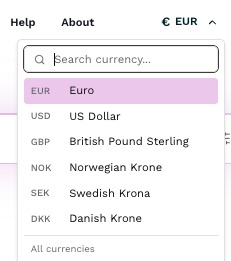
The confirmed price at checkout is always in your currency (the one linked to your Stripe account), so you are never responsible for any currency conversion. Stripe's processing fee is built into the Keyguides Connect platform fee — guests are responsible for any conversion fees from their own bank or card provider.
Frequently Asked Questions
You can update your prices at any time.
For Tours: go to Tours, open the tour, click Edit tour, scroll down to your price options update the price, and save.
For Custom Tours: go to Custom Tours, adjust your prices next you the durations you update.
The converted price was based on the exchange rate at the time of launch and is not updated automatically, so it's worth reviewing all your tours to make sure everything looks right.
Your guests are charged in your currency — the one linked to your Stripe account. When they browse your tours, they'll see an estimated price in their own currency for convenience, but the confirmed amount at checkout is always in your currency.
You are never responsible for currency conversion. Any conversion fees from a guest's bank or card provider are their own responsibility. Stripe's processing fee is already built into the Keyguides Connect platform fee.
Your currency is set automatically based on your Stripe account. The currency linked to your bank account in Stripe is the currency you price your tours in and get paid in on Keyguides Connect.
If you need to change your currency, please reach out to the team on live chat or email us and we will see what we can do about your case.
Keyguides Connect now shows prices in your local currency instead of euros. If you had existing tours priced in euros, those prices were automatically converted to your local currency using the exchange rate at the time of launch.
This was a one-time conversion — your prices won't change again automatically. We recommend reviewing your tours and custom tours to make sure the converted prices look right to you, and updating them manually if needed.